FAQ - General
Frequently Asked Questions Articles to help you get answers to your questions quickly
Why Am I Not Able to Delete Users, Locations, or Questions on a Checklist?
Learn why items are preserved in OpsAnalitica and how to safely deactivate them without losing your valuable data.
Understanding System Data Protection
Once users, locations, or checklist questions are saved in OpsAnalitica, they cannot be permanently deleted. This design choice protects your reporting history—deleting these records would remove essential historical information and create data gaps across your account.
Using Active and Inactive Statuses
Instead of deleting items, you can easily manage visibility by marking them as active or inactive:
Users and Locations: When set to inactive, these remain visible to administrators and authorized roles with a clear Inactive tag to indicate their status.
Checklist Questions: When set to inactive, the questions are shaded darker and have a clear Inactive tag to indicate their status.
Why Can't My User See Their Location, Checklists, or Reports?
Quickly troubleshoot and resolve common visibility issues to get your team up and running smoothly.
Overview
If a user cannot see expected locations, checklists, or reports, you can usually resolve the issue in less than a minute using Administrator privileges.
Common Visibility Issues & Solutions
Role-Based Issues: Easily identified when a user is missing core navigation buttons (such as Reports or checklist execution options).
How to Fix: Navigate to the user's account page and adjust their assigned roles.
Important: Always log the user out from their account page before saving changes. This forces a refresh upon their next login and applies their new access permissions instantly without losing in-progress work.
Tag Agreement Issues: Identified when a user cannot view a specific location or its associated data.
How to Fix: Ensure the user, location, and location user filter all share matching tags. Tag agreement requires that the user's tags match the tags on the location and the location's user filter, and that the user filter is properly configured and applied.
Pro Troubleshooting Tips
Verify Submission First: Before troubleshooting a user who cannot see a report, confirm as an Admin that the checklist was actually submitted. If it is not in the Completed folder, check the location's in-progress checklists.
Use Multiple Tabs: Open three browser tabs simultaneously for fast cross-referencing: one for the User Account, one for the Location, and one for the User Filter.
Troubleshooting Quick Guide
Reason
Where to Check
What to Check
Missing Roles
User's Account Page
Verify user roles. Update roles and log the user out from their account page before saving.
Tag Agreement
User's Account Page
Confirm user tags match their organizational hierarchy level (e.g., Store, District, Region, Corporate).
Tag Agreement
Location Page
Confirm the user tag matches a location tag, and ensure a valid User Filter is selected in the drop-down.
Tag Agreement
User Filter Page
Ensure hierarchy tags match, filter operators are set to Or (not AND ), tag statements use TAGGED WITH, and at least one tag matches the user
If user roles and tag agreements are correctly configured and applied, but the issue persists, please open a support chat with the OpsAnalitica Support team for further assistance.
3rd Party Inspector OpsAnalitica Explainer Sheet
Streamline third-party health and safety inspections by sharing dedicated, clear OpsAnalitica summary reports.
Choosing the Right Report Type
The Completed Report
Description: Displays details for a single completed checklist.
Pros: Limits the inspector's view to one specific checklist and can be easily printed or shared.
Cons: May include specific internal photos, tags, or comments.
The Checklists by Location Report
Description: Displays a summary of answers across a specified date range.
Pros: Demonstrates operational consistency over time without exposing internal comments, photos, or tags.
Cons: Highlights gaps in execution if checklists are submitted inconsistently, and requires selecting three initial filters to generate.
The Scheduled Checklist Compliance Report
Description: Displays a summary of schedule compliance across a specified date range.
Pros: Demonstrates operational consistency over time without exposing internal comments, photos, or tags.
Cons: Highlights gaps in execution and only works on scheduled checklists.
Note: Location users should obtain corporate approval prior to utilizing these resources with external inspectors.
MDM Solution Requirements
Ensure smooth deployment and optimal performance when managing the OpsAnalitica iOS application via Mobile Device Management (MDM)
Required Permissions & Device Access
When configuring your MDM policy for the OpsAnalitica iOS application, allow the following device capabilities:
Safari Access: The application functions as an optimized web shell and requires access to Safari browser services
Location Services: Essential for location verification during checklist completion (can be configured to "While Using the App")
Bluetooth: Required for connecting external measurement devices, such as digital temperature probes
Push Notifications: Enables real-time alerts and operational reminders
Network URL Whitelisting
Ensure your network firewall and MDM web filters whitelist the following URLs:
Why You Should Always Create New Entities vs. Renaming and Reusing Them
Learn how entity management preserves data integrity and historical accuracy across your organization
Understanding Entity Identification
Every entity in OpsAnalitica—such as a user account or location—is assigned a unique, permanent identification number. All historical data, submitted checklists, and performance reports remain permanently tied to this ID.
Why You Should Avoid Reusing Entities
Renaming an existing entity alters the historical record for all past data connected to that ID. For example, changing a user name from John Doe to Larry Doe causes every historical checklist previously completed by John to display as completed by Larry.
Best Practice
When a user leaves or a location changes, simply make the original entity inactive and create a brand-new entity from scratch. This ensures historical reports remain completely accurate while keeping current operational lists clean and up to date.
Switching Orgs
Effortlessly navigate between parent and child organization structures within OpsAnalitica.
How to Change Your Active Organization
Open User Options: Select the drop-down menu underneath your username in the upper right corner.
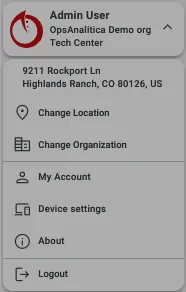
Select Change Organization: Click Change Organization to view all parent and child organizations available to your account.
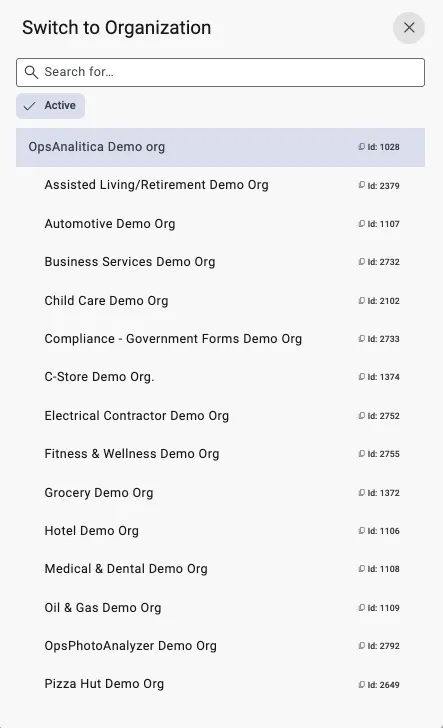
Switch View: Click on your target organization to change Organizations.
Note: Child organizations function independently and cannot view each other or access the parent organization's structure directly.
Accessing OpsAnalitica on a Computer
Access full platform capabilities directly from any desktop or laptop computer.
How to Log In
Open your web browser and navigate to OpsAnalitica.net.
Enter your credentials to log in
Browser Compatibility
For the best experience, use a modern browser such as Chrome, Safari, or Firefox.
How Can I Enable Location Services on Google Chrome?
Enable location settings in Google Chrome to ensure smooth checklist location verification.
Step-by-Step Setup
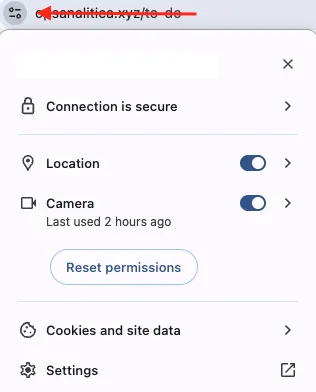
Go to the Far Left of the Chrome URL Bar.
Click on the menu
Configure your browser to enable Locations and Camera.
How Can I Figure Out What Version of the App I'm On?
Quickly check your app version to ensure you are running the latest features and updates.
How to Check Your App Version
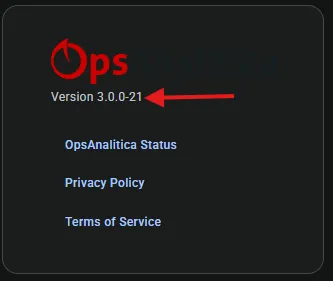
Open User Menu: Go to the left navigation menu, locate your name, and click the drop-down arrow beside it.
Select About: Click the About option from the menu.
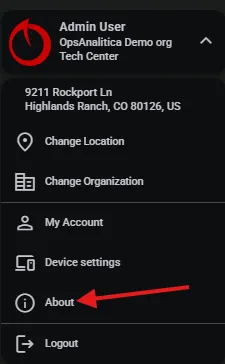
Verify Version: Your current version number will appear in the green bar at the top of the screen.
Tip: The app will always update itself when you have an internet connection.
Am I Able to Filter a Checklist to a Specific Person or Role?
No, you cannot assign a checklist to a user.
Yes, you can configure a checklist at a location to only be usable by a User with the appropriate tags. This requires creating visibility and submit rules that look at the users tags.
IIf you would like to get more information on this, open a support chat and request to speak to a human.
Why Am I Losing Points Because an Item is "Too Cold"?
Learn how cold hold rules evaluate temperatures to keep your food safe and product quality high.
Understanding Cold Hold Temperature Rules
If you are losing points because an item is marked "Too Cold," one of two scenarios is occurring:
Standard Cold Hold Rule: Any item measured below 32 ℉ is marked as Not Optimal and receives half points. Temperatures below freezing can damage temperature-sensitive products, such as fresh produce.
Incorrect Rule Applied to Freezers: Freezers typically operate around 0 ℉. Applying a standard Cold Hold rule to a freezer item will incorrectly penalize the temperature reading.
How to Resolve
Walk-In or Cold Hold Questions: The rule is functioning as designed to protect food quality.
Freezer Questions: Review the checklist setup to ensure the correct freezer rule is applied to the question.
Can You Change an Answer?
Learn about answer submission policies and how to submit updated checklist information.
Answer Modification Policy
Once you click Done and Submit, answers on a checklist cannot be modified or edited.
How to Correct an Answer
If you must update your responses:
Complete and submit a new version of the checklist with the correct answers.
Contact your OpsAnalitica Administrator to have the original checklist submission deleted.
Why Can't I Find My Submitted Checklists?
Easily locate in-progress or recently completed checklists on your device or server.
Overview
In almost all cases, a missing checklist simply has not been submitted yet.
Locating Checklists on the Same Device
If you are using the device where the checklist was filled out:
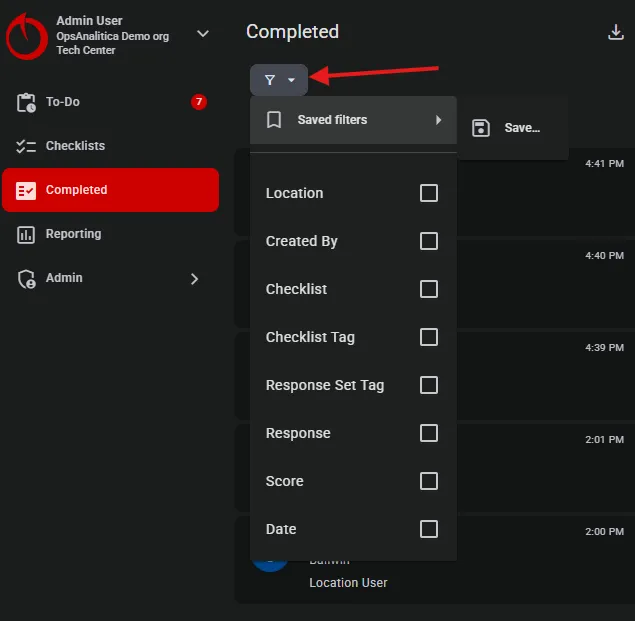
Check the Completed Report: Apply filters for the specific location and checklist. If your company uses child organizations, ensure you have selected the correct organization.
Resubmit Local Copies: If the item does not appear in the Completed Report, navigate directly to the location and checklist on your device. Open the local copy, scroll to the bottom, and click Done to submit.
Locating Checklists on a Different Device
If you are accessing the account from a new or different device:
Log in and navigate to the location and target checklist.
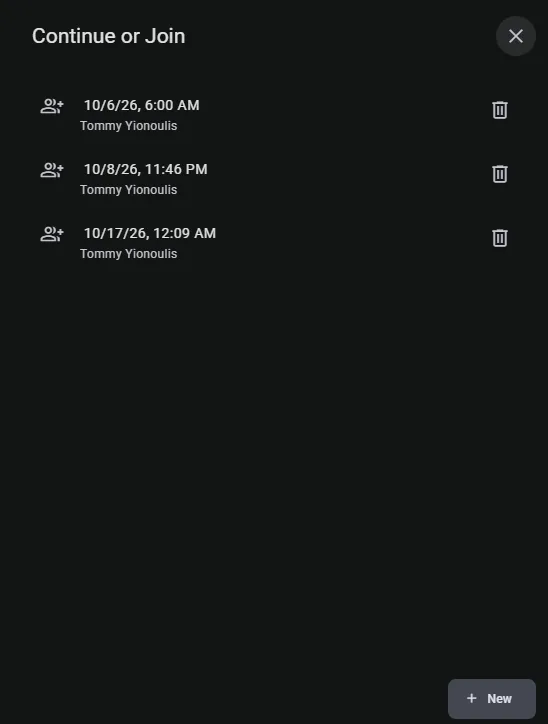
Locate the in-progress list displaying your name.
Click the button to download the checklist to your current device.
Open the checklist, scroll to the bottom, and select Done to finish submitting.
OpsAnalitica Compression Rate
Discover how OpsAnalitica optimizes performance and minimizes data usage.
Platform Optimization Details
The OpsAnalitica App maintains a 93.36% compression rate. This significantly reduces the size of assets, question sets, labels, and sensor module data transferred from source servers to your web browser for a fast, responsive user interface.
Got a Late Notification and the Checklist Was Completed
Learn how schedules, compliance statuses, and late notifications interact.
How Schedules and Compliance Work
OpsAnalitica uses structured schedules to automate daily operations and monitor task completion:
Start Time: The time when the schedule becomes available to be started.
End Time: This is the time the checklist is supposed to be completed by.
Allow Late: This is a short grace period that allows a User to start a checklist after its End Time. It is there because we know the real world happens.
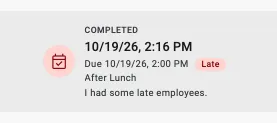
Late Notifications: Sent automatically to associated location staff if a scheduled checklist is not completed by its due time.
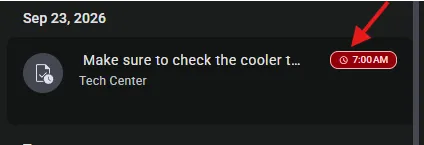
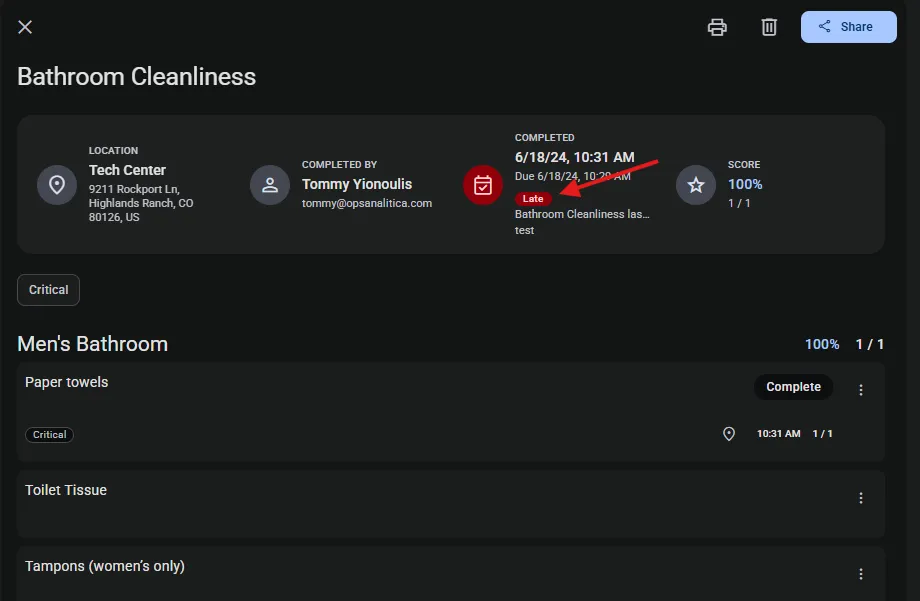
Late Status: Awarded when a checklist with an active grace period is completed after the due time.
Missed: Assigned when a scheduled checklist is missed entirely.
Ensuring You Get Credit
Always select your checklist directly from the schedule. When working from the schedule, the active schedule details display clearly at the top of your screen. Checklists selected from the lower general Checklists list do not link to the schedule automatically.
Associating Unscheduled Checklists
If you accidentally open and complete a checklist from the general list during a scheduled window:
Click Done.
Select the prompt option to link the unscheduled submission to your current active schedule.
How Long Can a Comment Be?
Keep your notes clear, concise, and complete within OpsAnalitica form fields.
Character Limit Guidelines
Comments in OpsAnalitica can be up to 1,024 characters in length, including spaces.
What Languages Does Your Platform Support?
Explore custom checklist language options and localization capabilities in OpsAnalitica.
Currently the platform is localized for North American English.
If you need the platform localized for different countries or languages, please reach out in the support chat, we would be happy to discuss adding your particular language and country to the platform.
Custom Content Languages
You can design checklists and allow users to submit answers in any language your business requires. Our clients currently build and run checklists in:
English
Spanish
Chinese
Myanmar
Are You Able to Take Videos on Your System?
Learn how to include video files with your checklist submissions.
Video Attachment Guidelines
Direct Recording: In-app camera video recording is not directly supported within the system.
File Uploads: You can record a video externally and upload it as a file attachment, provided the file size is under 10 MB.
Can I Take/Upload Photos on Your System
Learn how photo capture and upload features work within your OpsAnalitica checklists and comments.
Overview
Yes, photo support is fully integrated across the OpsAnalitica system.
Adding Photos
Photo Questions: You can add required photo questions directly into your checklists.
Answer Comments: You can take/attach photos as comments to individual answers.
How Do I Delete a Completed Report?
Understand how checklist deletion permissions work and how to delete completed inspection reports.
Important Policy Note
OpsAnalitica Support is strictly not permitted to delete completed checklists out of the platform on behalf of clients. Deletions must be performed by an authorized user within your organization.
Determining Your Deletion Permissions
Open the target Inspection Report.
Look at the top right corner of the report:
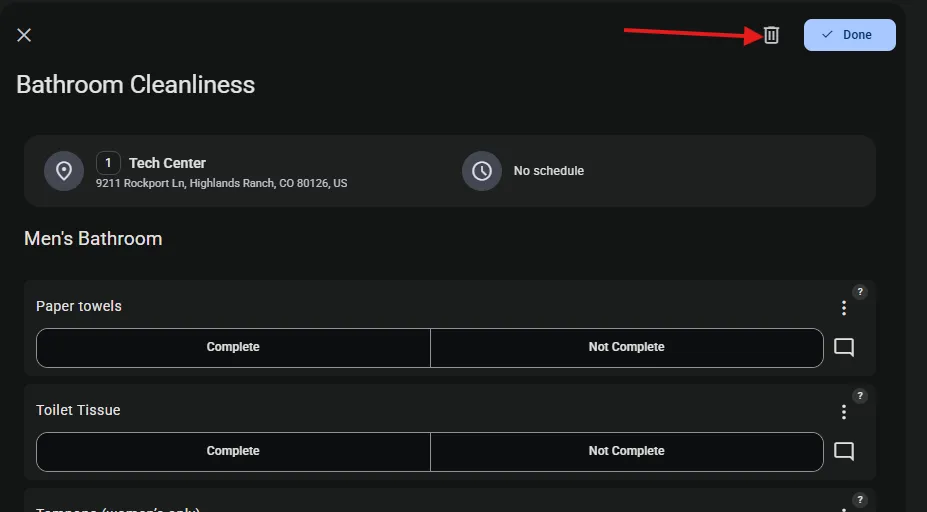
If you see the Delete Button: You possess the required role permissions to delete the report. Click Delete to remove it.
If the Delete Button is missing: Your account role does not have deletion privileges.
Next Steps If You Lack Permissions
Contact your company's OpsAnalitica Administrator, as they hold the necessary permissions to delete the checklist report for you.
Can I Create a PDF?
Learn how to quickly export and save any report in OpsAnalitica as a PDF from your computer.
How to Export a Report to PDF
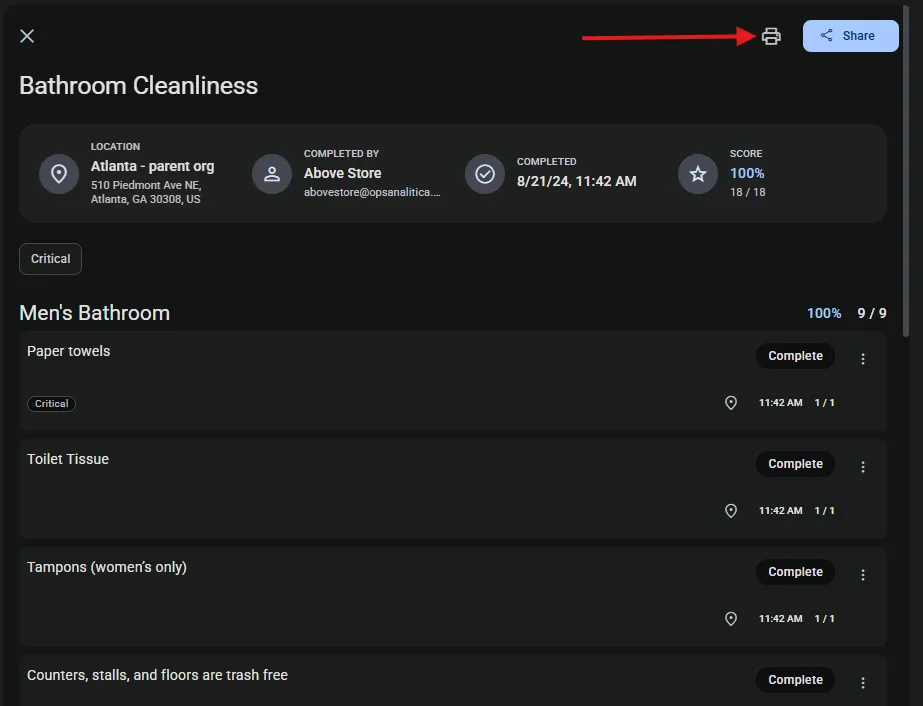
Open the desired report on your computer and click the Print button.
In the print dialog, locate your Print Option or destination dropdown.
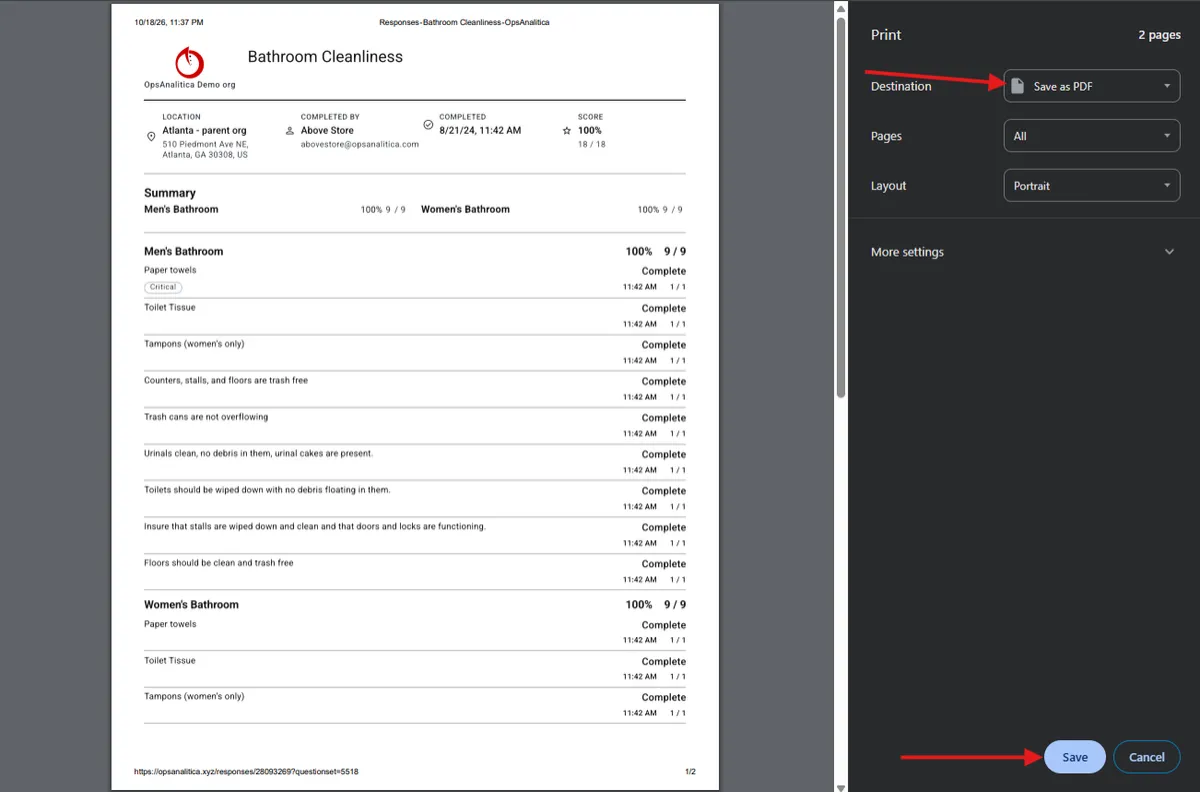
Select Save as PDF (or Print to PDF).
Click Save and choose your preferred file location.
Note: Depending on your web browser setup, you may need to ensure built-in PDF saving capabilities or PDF software is enabled.
What Devices Do You Work On?
Review supported mobile devices, operating systems, and desktop web browsers for OpsAnalitica.
OpsAnalitica works on all desktop computers with modern browsers.
Supported Mobile Devices & Operating Systems
Apple: Fully supported iOS mobile devices.
Android: Requires Android OS version 7.0 or newer. Devices must support web Bluetooth if you intend to pair external thermometers.
Mobile Testing Recommendation
Because Android devices vary significantly across manufacturers and hardware configurations, we strongly recommend testing the app in-store or on a single trial tablet before purchasing hardware for all locations.
Supported Web Browsers
Access OpsAnalitica on computers using the following modern browsers:
Chrome
Safari
Firefox
Edge
Note: The OpsAnalitica App is not supported on Internet Explorer.
Do You Have an API?
Discover our full platform API capabilities, documentation access, and sandbox testing environment.
Accessing API Documentation
OpsAnalitica features a comprehensive API. You can access complete API documentation by visiting OpsAnalitica.net/api
Important API Guidelines
Permissions: You can only call and access API methods that correspond to your assigned roles in the application.
Authentication: Authorization is required before invoking any API methods.
Test Environment Access: The primary API is live. If you require access to our sandbox testing environment, request it via support chat. Upon approval from your account administrator, our team will reach out directly to grant access.
Do You Have Documentation?
Access complete platform guides and training materials within OpsAnalitica.
How to Access Documentation
Click the Support button inside the platform.
Open the Certified OpsAnalitica Administrator Training to view complete, full-platform documentation.
How Many Photos Can I Take Per Comment?
Understand photo limit guidelines per comment, photo question, and overall checklist submission.
Photo Capacity Guidelines
Photos per Comment: You can attach up to 5 photos per comment.
Multiple Comments: You can add as many individual comments as you need, each holding up to 5 photos.
Photo Questions: Photo-type questions allow up to 5 photos per item.
Managing & Removing Photos
Each captured photo displays a Delete button at the bottom, allowing you to easily remove and retake any image before clicking OK.
Overall Checklist Size Limit
The only system constraint is that total data for a single submitted checklist cannot exceed 100 MB.
I Accidentally Submitted My Checklist, Can I Reopen It?
Learn about checklist submission rules and best practices to prevent accidental submissions.
Reopening Policy
Once a checklist has been submitted, it cannot be reopened or edited.
How to Prevent Accidental Submissions
To guard against premature submissions on future checklists, consider implementing a required verification step:
Add a True/False question as the final item of your checklist.
Phrase the question clearly, such as: "I have reviewed my responses, and I'm ready to submit."
Mark this question as Required.
Because required questions must be answered before final completion, accidentally clicking Done will hold the submission until the final question is checked.
I Hit Enter and My Checklist Submitted
Understand mobile keyboard interaction behavior and learn simple steps to avoid unintended checklist submissions.
Why This Happens
On mobile devices, pressing Enter or Return while typing inside data entry fields triggers native OS accessibility shortcuts. The operating system applies the Enter keypress directly to the primary action button—in this case, the checklist Done button—resulting in immediate submission.
Note: This accessibility behavior occurs within standard data entry fields, but does not affect text fields like comment boxes.
What You Need to Know
Submitted Checklists Cannot Be Reopened: Because this action submits the form to the system, the checklist is closed and cannot be reopened.
System Limitation: This behavior is built directly into mobile operating systems to assist users with vision impairments and cannot be modified by OpsAnalitica.
How to Prevent Premature Submissions
Adjust Typing Habits: Tap directly outside the input box to deselect it rather than pressing Enter or Return on your keyboard.
Add a Final Required Question: Add a required True/False question to the bottom of your checklist (e.g., "I'm ready to submit"). Because required questions must be answered last, any accidental Enter keypress will be blocked until that final box is explicitly selected.
How Do You Make Sure Your Team Is Taking Photos Every Time?
Ensure real-time photo capture and maintain operational compliance across all location teams.
Automatic Camera Capture
When an employee opens a photo question on most modern iOS and Android mobile devices, the native camera launches automatically to take a new picture.
Use a Photo Source Rule to ensure that the camera is used every time.
Make sure you get your OpsAnalitica Communications by Whitelisting our Sites.
Ensure seamless platform functionality and uninterrupted communication by whitelisting essential OpsAnalitica web domains and email addresses.
Overview
To take full advantage of OpsAnalitica features, alerts, and support tools, your organization's IT team must whitelist the system addresses listed below.
Approved URLs
Configure network firewalls and browser security settings to allow access to:
Approved Email Addresses
Ensure spam filters and email servers permit messages from:
How to Filter Active Schedules in OpsAnalitica
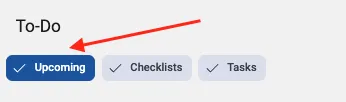
On the To Do page,
Toggle the Upcoming Button On to see upcoming schedules.
Toggle the Upcoming Button Off to only see what is available to be worked right now.
What Are Site Inspections?
Discover how site inspections help personalize your OpsAnalitica experience and lay the foundation for your daily restaurant checklists.
Overview
For many new users, completing the Site Inspection is the primary first step within OpsAnalitica. The information gathered during this inspection customizes and unlocks your regular operational checklists.
Key Steps & Important Details
Complete Inspection First: Always perform your site inspection prior to starting other routine tasks.
One-Time Setup: You only need to finish the site inspection once.
Processing Time: Allow up to 24 hours for your site inspection data to process and apply to your location.
Accessing Regular Checklists: Standard daily checklists automatically become available as soon as inspection results are recorded.
Need to Correct an Entry?
If you make an error during setup, simply open a support chat, and an OpsAnalitica representative will help you update your information.