FAQ - Offline
These are FAQ's in regards to Offline Functionality
Working Offline
Discover how offline functionality in OpsAnalitica keeps your daily operations moving without an active internet connection.
Overview
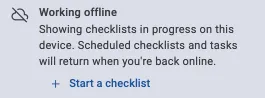
OpsAnalitica's offline capability allows you to complete daily checklists even when you lack internet connectivity or during system maintenance. You will know your offline by going to the To Do page, there will be a message stating that you are offline.
Key Offline Features & Guidelines
Checklist Execution: Offline mode supports completing checklists; other platform features are unavailable until connected.
Checklist Selection: Schedules do not render offline, so you must select checklists directly from the general checklists list.
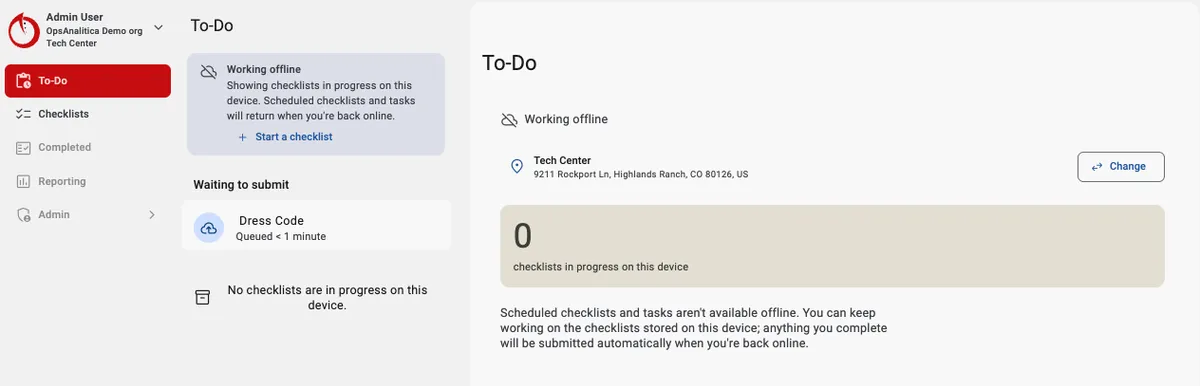
Pending Status & Sync: Completed offline checklists appear the Waiting to Submit section of the To Do page.
Schedule Association: If a schedule existed or was supposed to generate during downtime, the system automatically associates completed offline checklists with the schedule without negatively affecting your compliance numbers.
Troubleshooting Offline Mode
If your app does not transition into offline mode automatically, enable Airplane Mode on your device and confirm Wi-Fi is turned off.
What Are Pending Checklists?
Learn what pending checklists are and how they operate when working offline in OpsAnalitica.
Overview
Pending checklists are checklists created while your device is disconnected from the internet. They remain stored on the device in the, Waiting to Submit, section of the To Do page until internet connectivity is restored, at which point they automatically sync to the OpsAnalitica Cloud.
Offline Status Indicator
You can easily tell when your device is offline by looking on the To Do page, at the top of the To Do list, an Offline message will be displayed. When offline you will only be able to access Checklists off the Checklist page and work them. No other part of the app will work until internet connectivity is restored.
How Do I Sync a Pending Checklist?
Follow these troubleshooting steps to manually trigger a sync for pending checklists.
Overview
Pending checklists sync automatically once your internet connection is restored. If automatic synchronization does not occur, you can manually trigger the sync process.
Step-by-Step Sync Guide
Go to the To Do Page
Go to the Waiting to Submit Section.
Click on the Checklist.
Click Done to again.