Primeros pasos: Capacitación para usuarios
This section is for new end users to the OpsAnalitica Platform. It contains everything you will need to learn to use the platform.
Introduction
Welcome to the OpsAnalitica Platform! This training is designed for end users who will be completing checklists on the platform. These quick-read articles will get you familiarized with OpsAnalitica and make it easy for you to start completing your daily tasks.
Table of Contents
Getting the OpsAnalitica App
Logging in for the First Time
Confirming Settings
My Checklists Page
Conducting a Checklist
Completed Checklists
Dashboards and Reports
Connecting a Bluetooth Thermometer
How to Get Support
This training can be completed within about 10 to 15 minutes and once you pass it you can train the rest of your team.
Getting the OpsAnalitica App
Getting Started with OpsAnalitica (Web + Mobile)
Welcome to OpsAnalitica! You can access your account from any web browser or your mobile device in just a couple of steps.
Option 1: Access OpsAnalitica on the Web
Open any web browser on any device
Go to OpsAnalitica.net
Log in to get started
Option 2: iPhone & iPad Users (iOS)
Install the mobile app directly from the App Store:
Option 3: Android Users (Google Chrome)
For the best experience on Android devices, you must access OpsAnalitica on Google Chrome. You can also add OpsAnalitica to your home screen for quick access.
Follow these steps:
Open Google Chrome on your Android device
Navigate to OpsAnalitica.net
Log in using your credentials
Tap the 3-dot menu (top-right)
Select Add to Home Screen
Follow the on-screen prompt (many Android versions will suggest creating the shortcut automatically after your first login)
On modern Android Devices, the device will ask you if you want to create the App the first time you login.
Option 4: Android Users (Google Chrome)
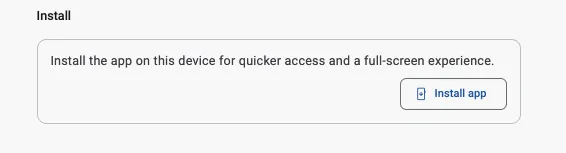
Go to the upper left hand Menu - Device Settings
Scroll to the bottom of the page.
Click Install App
Logging in to the OpsAnalitica App for the first time
Logging in to OpsAnalitica for the First Time
Welcome to OpsAnalitica! Getting logged in for the first time is quick, easy, and straightforward. Once you have opened the app on your mobile device or navigated to the web portal, follow these simple steps to access your account.
How to Receive Your Login Credentials
You will receive your login details in one of two convenient ways:
Directly from Your Administrator: Your manager or OpsAnalitica administrator will provide your login email and password directly to you. This also applies to organizations using Single Sign-On (SSO).
Via Welcome Email: You may receive a “New User - Set your password” email. Simply click the link in the email to create your password.
Note: Passwords must be at least 8 characters long.
Navigating the Login Screen
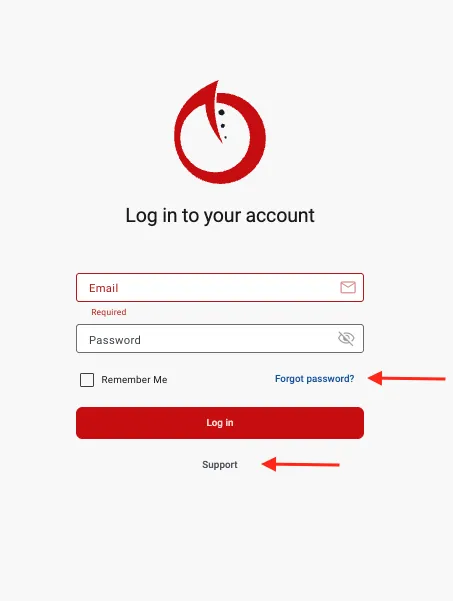
Once you have your credentials ready, navigate to OpsAnalitica.net or open your app to sign in:
Login: Enter your full email address (your username is always your email).
Password: Enter your unique password (minimum 8 characters).
Remember Me: Check this box if you want to stay logged in on your device so you don't have to enter your details every time.
Forgot Password: If you ever forget your password, click this link to receive a reset link via email.
You must have access to the email address associated with your account to receive the reset link.
If you don't see the email within a few seconds, check your junk or spam folder.
If you do not receive a reset email, double-check that you entered the correct email address or reach out to your manager or company administrator for assistance.
Support: Click the Support button at any time to open the live Support Chat for immediate help!
Confirming your initial Device Settings
Confirming Your Initial Settings
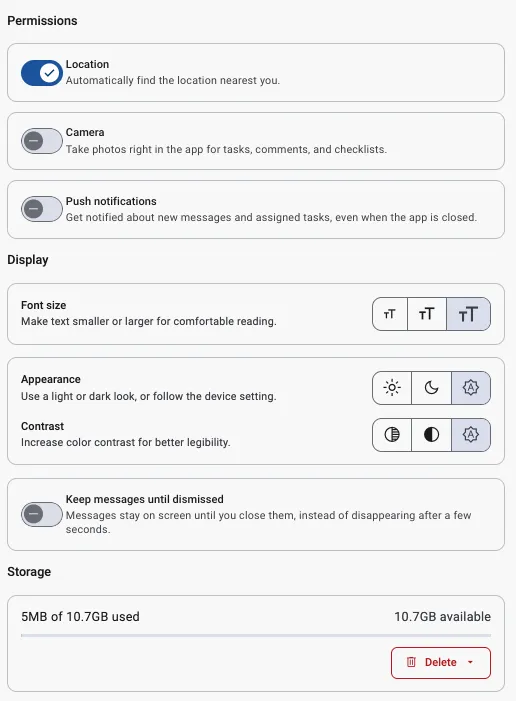
Welcome to OpsAnalitica! When you log in for the very first time, you will start directly on the Device Settings page. Setting up your preferences takes just a few seconds and ensures your app functions smoothly across all your devices.
1. Enable Location Services
Make sure to enable the Location box.
Important: You may see a device pop-up asking for permission to enable Location Services for the site—be sure to select Allow or Yes!
2. Set Up Push Notifications
Check the Push Notification box to enable instant alerts in your browser or device.
Keep in mind that push notifications need to be configured separately on each device you use.
3. Enable your Camera
You have to enable your camera so you can take Comment Photos.
Important: You may see a device pop-up asking for permission to enable your Camera for the site—be sure to select Allow or Yes!
4. Display Settings
You can set your Font Size, Appearance and Contract.
The A setting will just mimic your devices settings.
5. Keep Messages Until Dismissed
Toggle this switch to leave Push Notifications on your screen until you physically close them.
When you are done configuring your device settings. Just click on the To Do or Checklists buttons to start working forms.
The To Do Page
The To Do Page
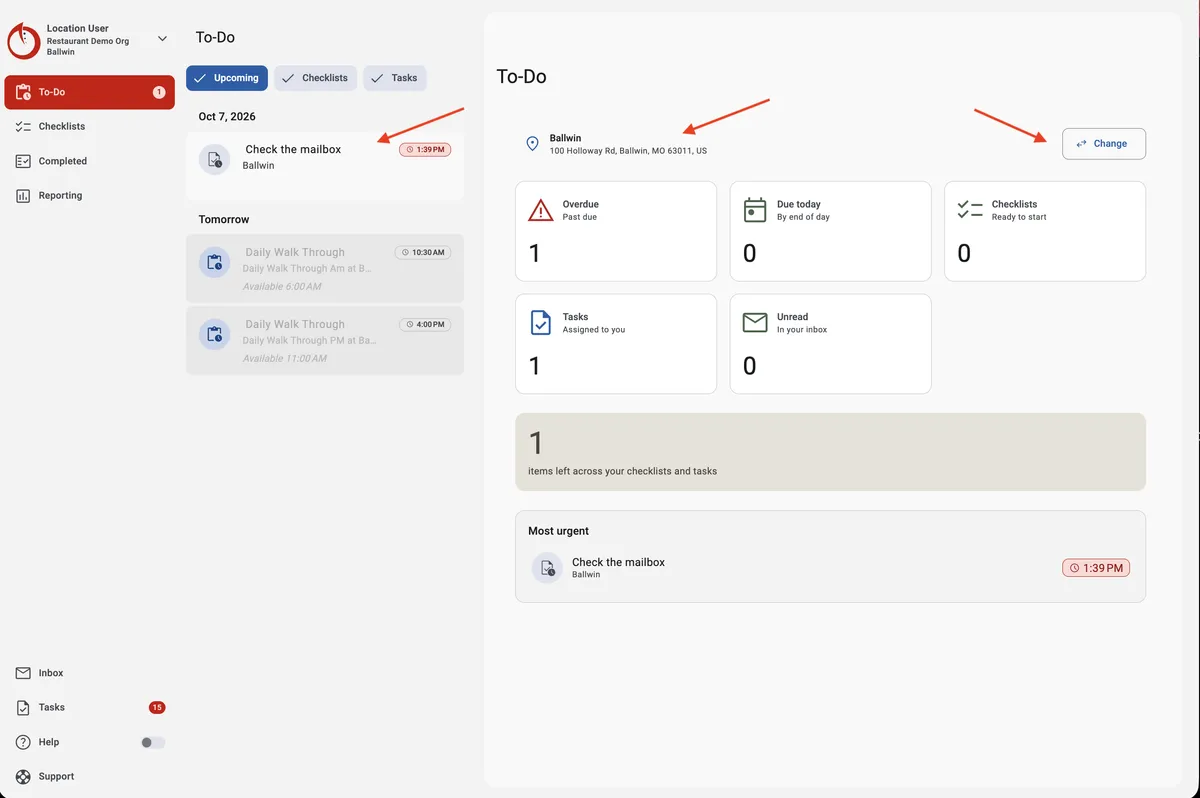
Welcome to your central hub in OpsAnalitica! The To Do page is your default landing page upon logging in. It provides a clear overview of your daily schedule and assigned tasks, and gives you quick access to launch and complete all of your To Do items.
Key Features of the To Do Page
Location: Your location is automatically detected and selected for you. If you manage multiple locations, the platform automatically defaults to the location closest to you.
Change: Allows you to change your location.
To Do List:
Available Checklists: Click directly on any available schedule item to launch the checklist.
Greyed-Out Items: These checklists are not yet active. Return later when they appear in full color to complete them.
Time Indicator on Checklist: Indicates what time the Checklist is Due and will update throughout the shift.
Toggle Buttons: Allows you to quickly switch your view between:
Upcoming: When checked, shows future and available schedules.
Checklists: When checked, shows checklists.
Tasks: When checked shows Tasks.
To Do Cards: Displays required Checklists and Tasks along with their specific due times. Management tracks completion for timeliness, so always select and complete checklists directly from your schedule.
To Do Dashboard:
Provides you will a summary of what is currently available, what the rest of your day looks like, and what is most urgent.
The Checklists Page
The Checklists Page
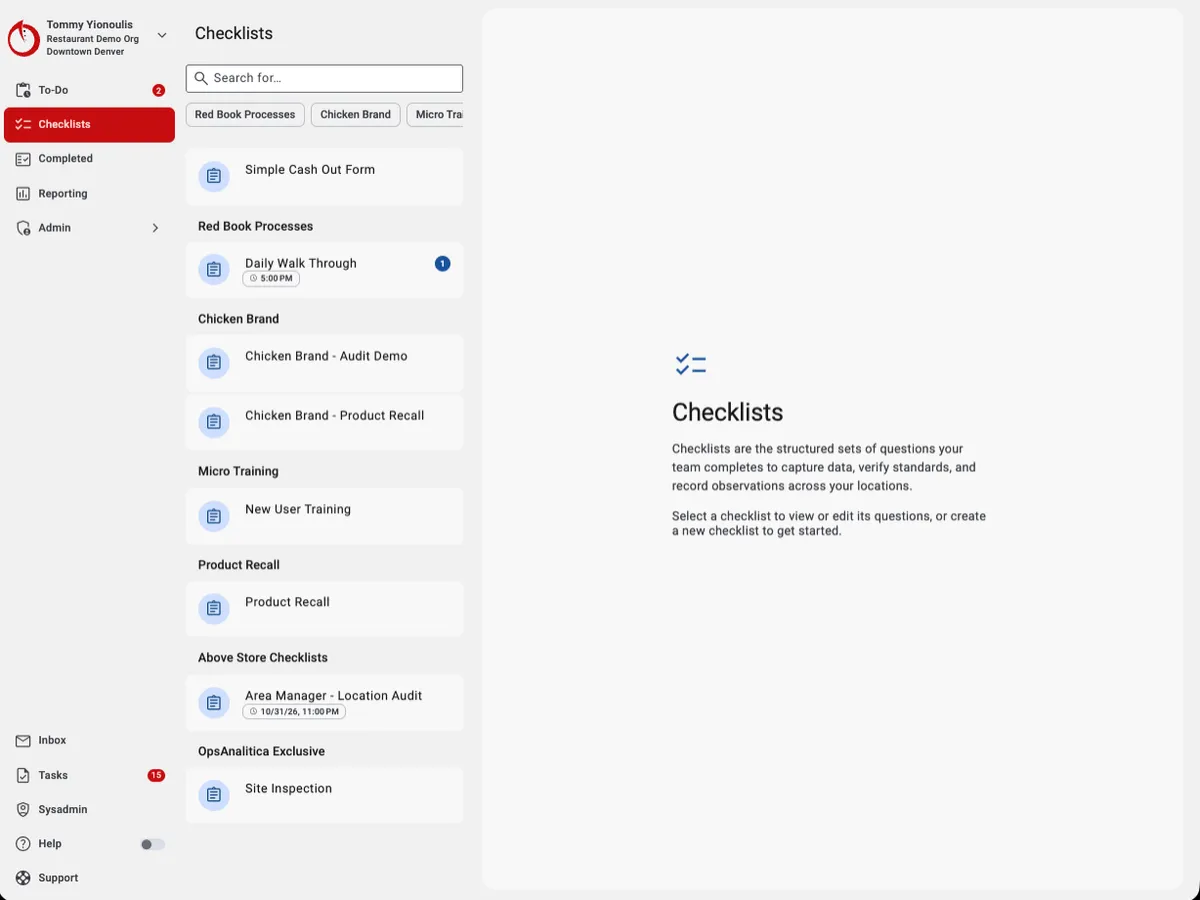
This is your list of all Checklists that are available to be used at your Location. It will display scheduled and non-scheduled forms. You can launch any form right from this page.
Key Features of the To Do Page
Checklists List:
Search: search by name.
Search by Category: Toggle the button to highlight all the Checklists in a category.
Time Indicator on Checklist: Indicates what time the Checklist is Due and will update throughout the shift.
Count Chip: This blue button will show you a count of all in-progress, not completed, checklists.
Checklist Cards: Displays Checklists with their specific due times.
Completing a Checklist
Conducting a Checklist
Completing checklists in OpsAnalitica is simple, intuitive, and designed to streamline your daily routines. Once you launch a checklist from the To Do or Checklists page, follow this guide to complete and submit your work efficiently.
Opening/Starting a checklist
Select Your Form: Select the form you want to work on from the To Do or Checklists page.
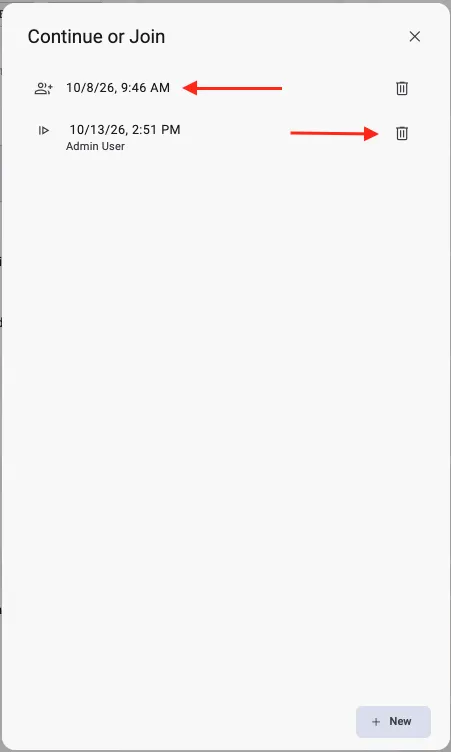
Continue or Join: If someone has started a version of this form. You have the option to Join their In-progress checklist, Delete their In-progress Checklist, or start a New Checklist.
To Join: click on the left side of the row on top of the Date and Time.
To Delete: Click on the Trash Can. (you cannot retrieve a deleted in-progress checklist)
New: start a New version of the checklist.
You want to Delete old or not going to be used versions of checklists.
Navigating the Checklist Interface
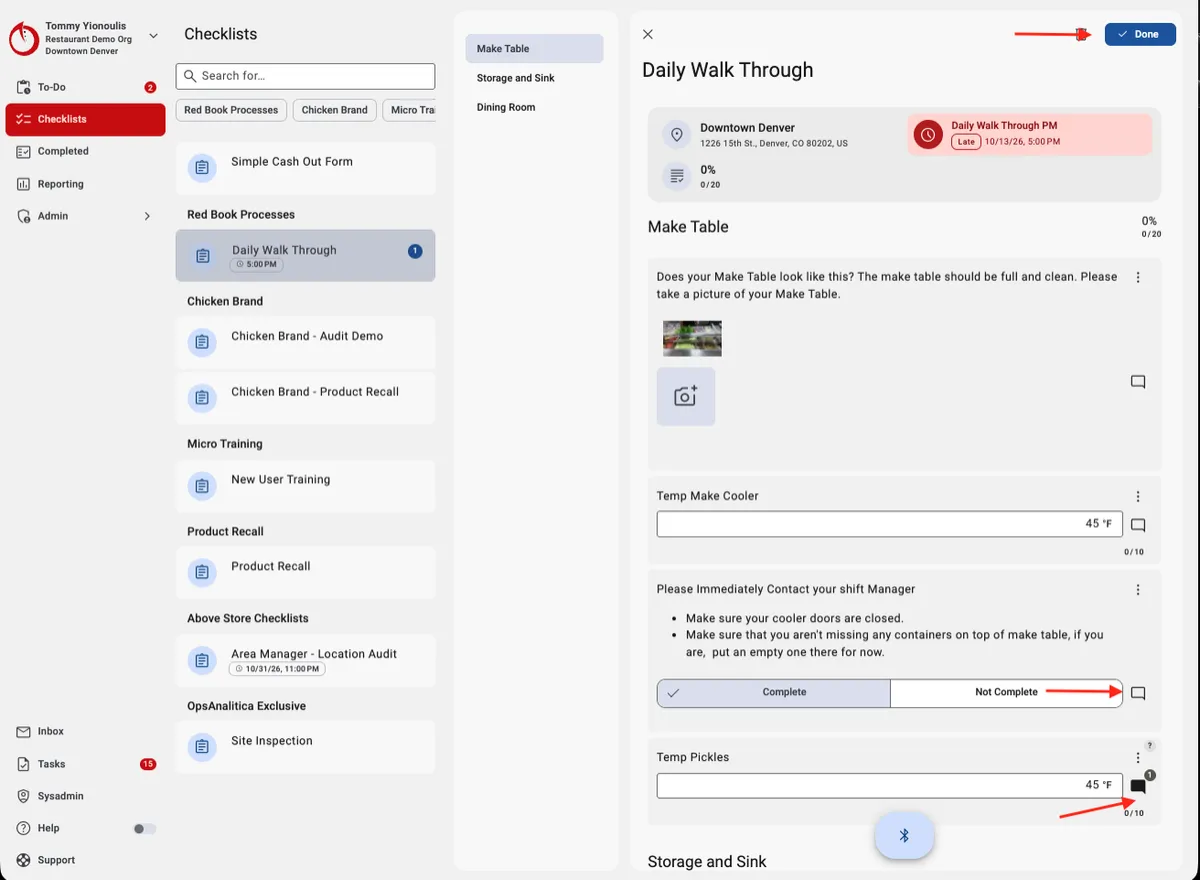
Location Display: Confirms the active site for the checklist.
Click the Location Card for detailed location information.
Schedules: Displays the specific scheduled time window tied to the current checklist.
Questions: Answer all required questions to enable submission.
Comment Box: Available on every question, to the right of the control, to add notes, upload photos, or attach documents.
When the box is Black with a number badge, that means that there is a comment in there, just click on the Comment Box to view the comments.
Delete Button: Located in the top right corner if you need to discard an incompleted checklist.
Adding Required Photos and Comments
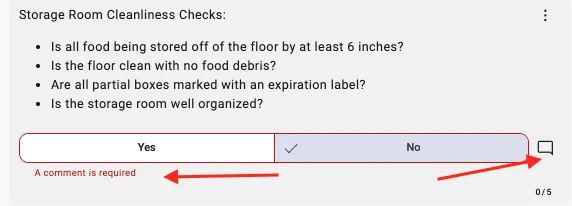
Visual Indicators: If a question requires additional information, a prompt message appears below the control. The platform prevents checklist submission until all required items are provided.
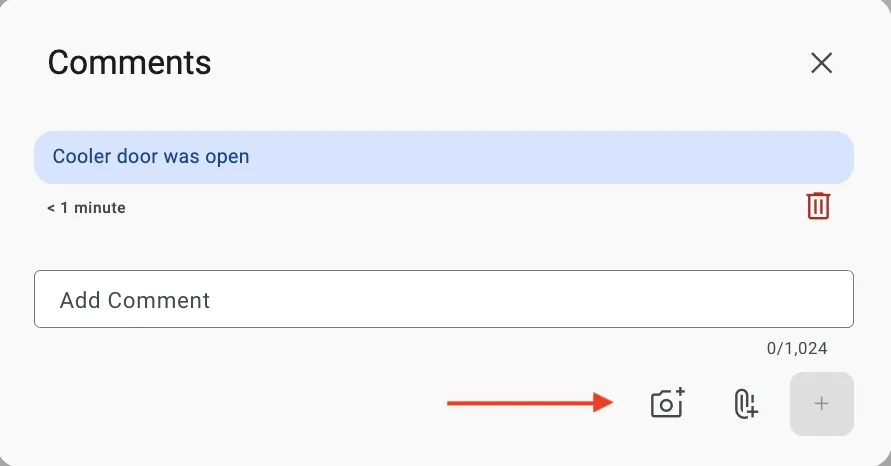
Adding Entries: Select the Comment Box to enter details:
Required Comment: Accepts either written text , a photo, or file attachments.
Required Photo: Must be an image file. You can attach up to 5 photos per comment.
Saving Entries: Select + once finished to post your comments and attachments.
Submitting Your Checklist
Review your answers and tap Done or the ✓ to submit.
Keep the app open until you get confirmation that the form was submitted.
Note: Submitted checklists cannot be edited. Please double-check your answers before submitting.
Filling out a Checklist
Filling out a Checklist
Completing checklists in OpsAnalitica is simple, intuitive, and designed to streamline your daily routines. Once you launch a checklist from the To Do or Checklists page, follow this guide to complete and submit your work efficiently.
Opening/Starting a checklist
Select Your Form: Select the form you want to work on from the To Do or Checklists page.
Continue or Join: If someone has started a version of this form. You have the option to Join their In-progress checklist, Delete their In-progress Checklist, or start a New Checklist.
To Join: click on the left side of the row on top of the Date and Time.
To Delete: Click on the Trash Can. (you cannot retrieve a deleted in-progress checklist)
New: start a New version of the checklist.
You want to Delete old or not going to be used versions of checklists.
Navigating the Checklist Interface
Location Display: Confirms the active site for the checklist.
Click the Location Card for detailed location information.
Schedules: Displays the specific scheduled time window tied to the current checklist.
Questions: Answer all required questions to enable submission.
Comment Box: Available on every question, to the right of the control, to add notes, upload photos, or attach documents.
When the box is Black with a number badge, that means that there is a comment in there, just click on the Comment Box to view the comments.
Delete Button: Located in the top right corner if you need to discard an incompleted checklist.
Answer Questions:
Read the Question
Move to the object if you are not currently standing there.
Answer the Question honestly
If the answer is out of spec you may be prompted to complete follow up questions or required to add a comment or additional photo.
Adding Required Photos and Comments
Visual Indicators: If a question requires additional information, a prompt message appears below the control. The platform prevents checklist submission until all required items are provided.
Adding Entries: Select the Comment Box to enter details:
Required Comment: Accepts either written text , a photo, or file attachments.
Required Photo: Must be an image file. You can attach up to 5 photos per comment.
Saving Entries: Select + once finished to post your comments and attachments.
Submitting Your Checklist
Review your answers and tap Done or the ✓ to submit.
Keep the app open until you get confirmation that the form was submitted.
Note: Submitted checklists cannot be edited. Please double-check your answers before submitting.
Reporting
Reporting
OpsAnalitica offers robust visibility into your operations through intuitive visual dashboards and detailed data grid reports.
Every User in the system is assigned to 1 or more Locations. When you load any report, you will automatically be filtered to only the Locations you are Assigned to.
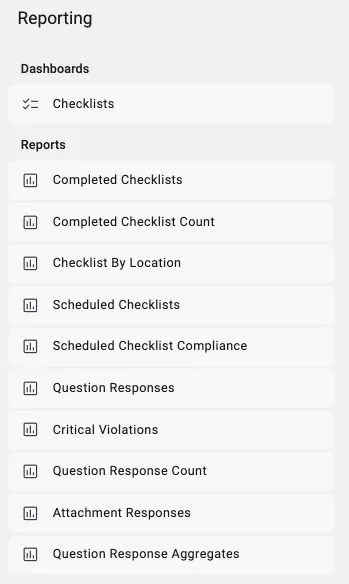
Dashboards
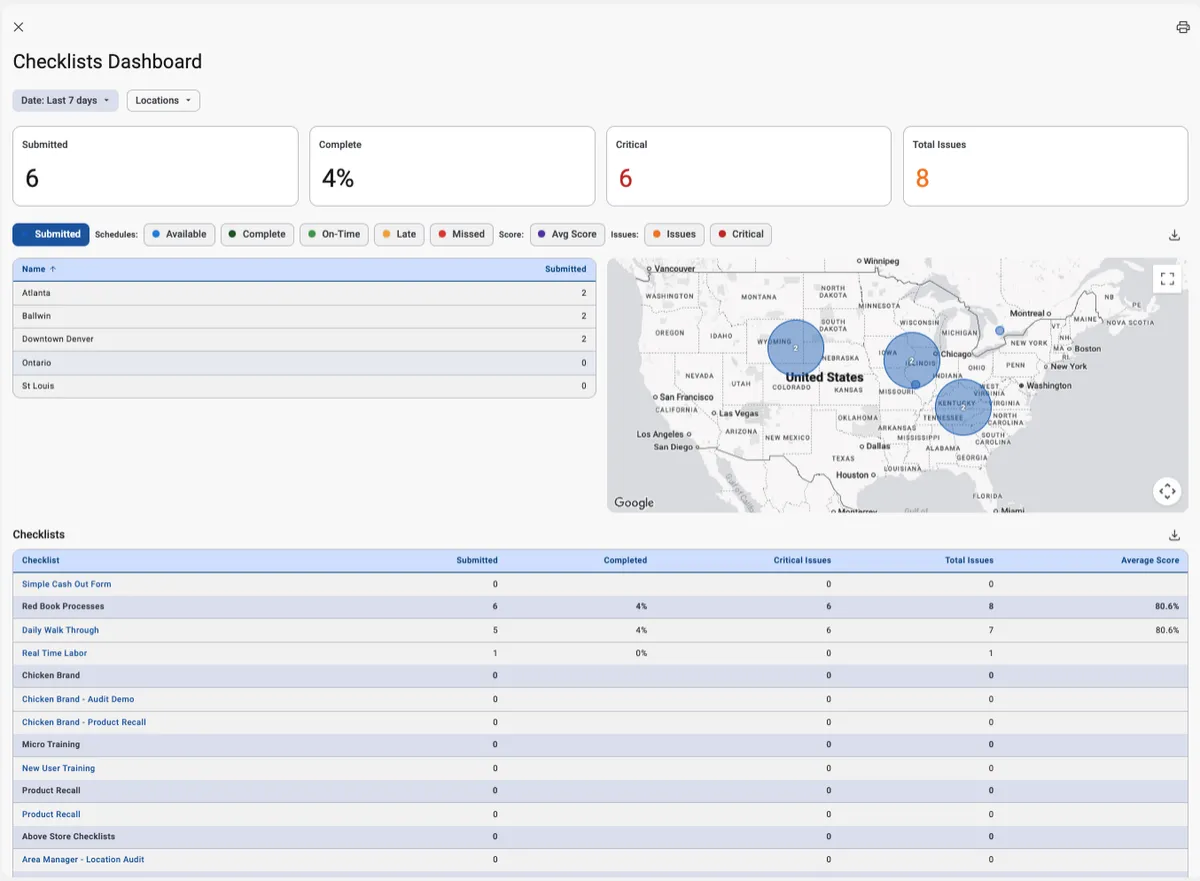
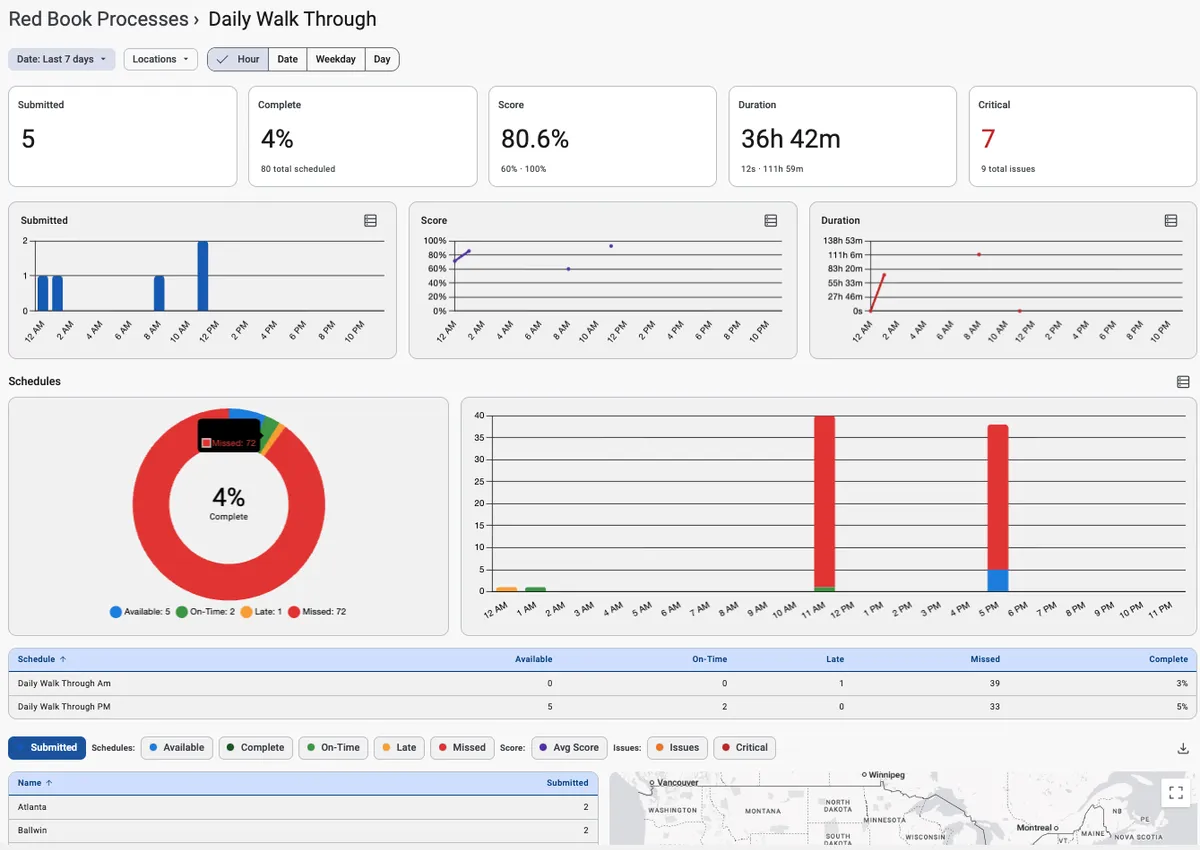
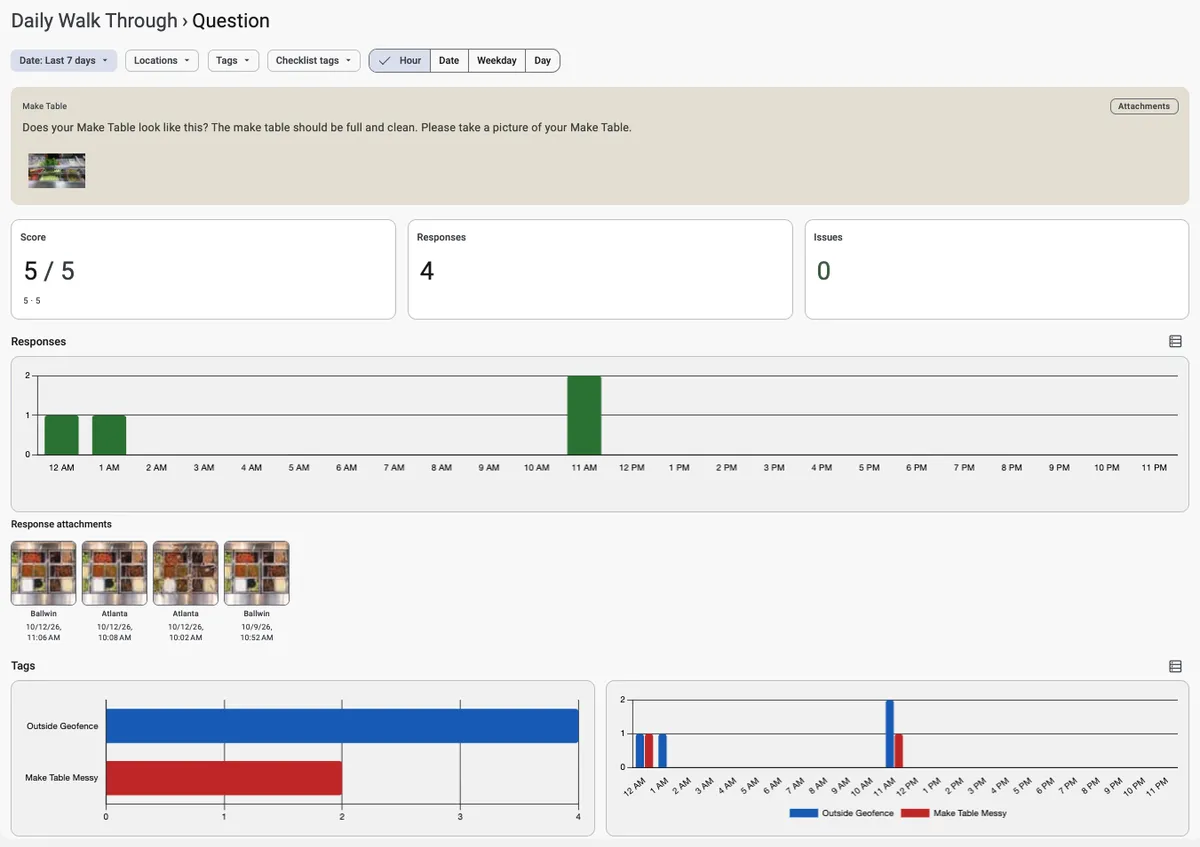
Dashboards aggregate operational performance and schedule compliance data into clear visual overviews across three detail levels:
How to use the Dashboards:
Date Range: The Date Range is defaulted to the Last 7 days. You can select any Date Ranch you would like.
Location Filters: Location Filters are groups of locations, that is how you can filter the report to a group of or a specific Location.
The Map: The Map on each Dashboard page is a filter as well. You can scroll and zoom to filter the Dashboard.
Checklists Dashboard: Analyzes top-level operations across all checklists by evaluating overall completion counts, operational issues, and schedule compliance.
Checklist Dashboard: Focuses on a single checklist to examine specific compliance trends, response counts, scheduled performance, and top flagged issues.
Question Dashboard: Drills down to individual questions across locations, allowing managers to monitor specific standards, review photo submissions, and read field comments.
Reports
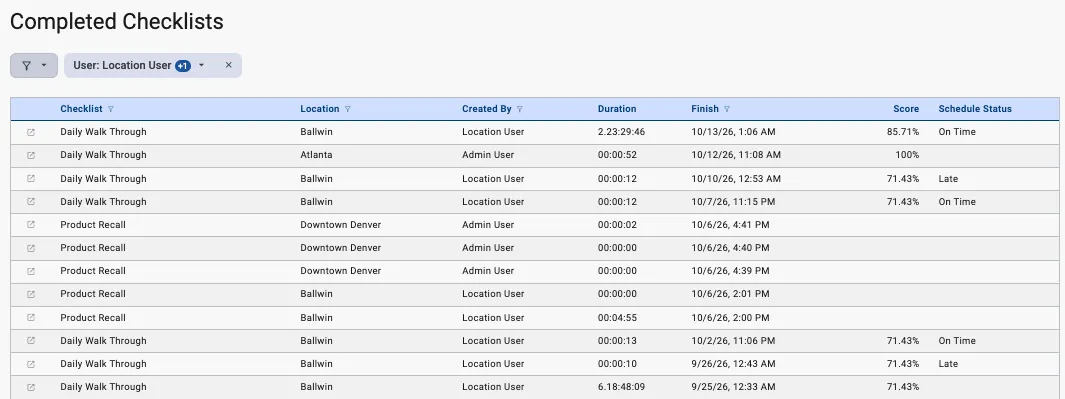
Reports provide itemized data grids designed for deep-dive analysis, filtering, and exporting into spreadsheet formats:
Customize filters to isolate specific operational cuts.
These Filters work exactly the same as the Filters on the Completed.
You can also click in Cells of the report to filter.
Open the Completed by pressing the up Arrow button on the far left of every Column.
Report Definitions:
Completed Checklists: Details every completed form across the platform, providing key metadata such as Form Name, Location, Created By, Score, Finish Date, Duration, and Schedule Status.
Completed Checklist Count: Groups data by Location to display the total count of completed checklists during a selected timeframe.
Checklist By Location: Displays completed checklists for a location in a side-by-side column format, allowing for direct comparison of question responses.
Scheduled Checklist Compliance: Tracks scheduled checklists by location and displays active status details, including Available (active schedule), On Time (started within the scheduled window), Late (started within the grace period), or Missed (schedule window missed).
Scheduled Checklist Compliance Rate: Displays calculated compliance percentages to show how consistently each location completes scheduled checklists on time.
Question Responses: Displays every question and response recorded across all completed checklists. Includes a Critical Violations subset filtering for questions flagged as Critical with an Unsatisfactory response.
Question Response Count: Aggregates and counts the frequency of specific questions and responses across your forms.
Attachment Responses: Displays photo question responses alongside their uploaded image attachments.
Question Response Aggregates: Calculates numerical summaries across number-based questions, including Average, Count, Minimum, and Maximum values
Using a Bluetooth Thermometer
Bluetooth Thermometers
OpsAnalitica currently supports Bluetooth thermometers from Cooper Atkins, now called Copeland, and ThermoWorks.
Connecting a Bluetooth Thermometer
Open a Checklist
There is a floating menu at the bottom of the screen with a Bluetooth Icon.
Turn on your Thermometer
Click on the Icon
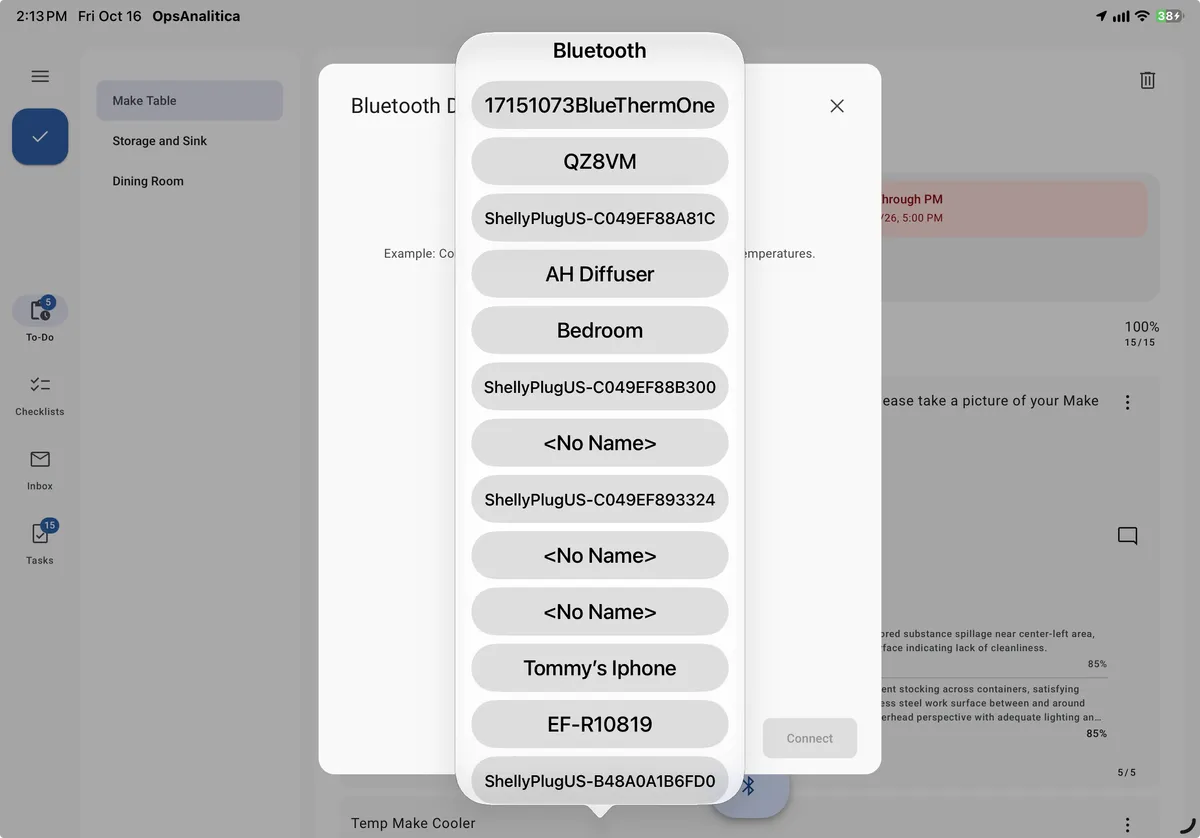
A list of Bluetooth devices will appear.
Let the list load because your devices is going to be finding every Bluetooth Device around you.
Select your Thermometer.
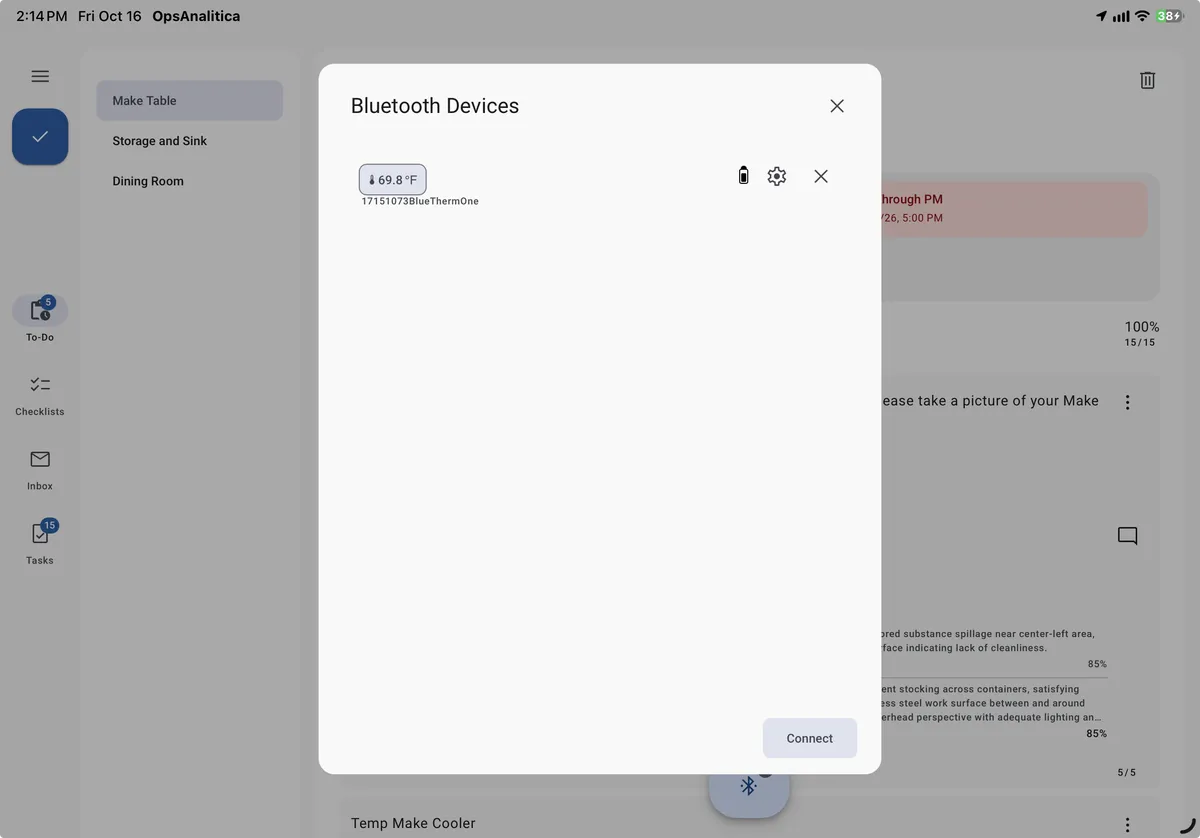
You will see the Thermometer, the current Temperature Reading.
Click the X in the top Right Corner.
Answering Questions with a Bluetooth Thermometer
Click in the number question
You will see the temperature from the Thermometer in a floating box.
Click the button the Thermometer and the Temperature will be placed into the Number box.

Disconnecting the Thermometer
You can turn it off.
You can go back to the Bluetooth menu and click the X by the Thermometer.
System Requirements
Android Devices: Requires Android version 7.0 or higher. Refer to Google Android Support to verify your operating system version.
iOS Devices: Requires the latest version of the OpsAnalitica App from the Apple App Store.
Getting Support
How to Get Support
OpsAnalitica University is your all-in-one resource center for troubleshooting, step-by-step documentation, and support assistance.
Click on the Support Button in the bottom left corner.
Navigating Support Resources
Self-Service Knowledge Base: Search OpsAnalitica University for instant answers. Articles include detailed guides and video tutorials covering every feature of the platform.
Live Chat Support: For direct assistance from a support representative, select the Chat Icon in the bottom right-hand corner of your screen.